
Parent Portal is an online portal accessible anywhere on the web that parents and guardians can log in to and see information about all their students in one place, including grades, assignments, scores, attendance, schedules, and more.
How Can You Use Parent Portal?
 Grades – Review specific assignments, missing assignments, and teacher comments.
Attendance – Review absences for all classes.
Notifications – Receive live grade and attendance notifications.
How Can You Access Parent Portal?
You can access the PowerSchool Parent Portal two different ways:
- Visit insightpa.powerschool.com/public in your computer or mobile web browser.
- Download the app on your Android or iOS device using the links below.
- Use our school code to login to the app for the first time – LTRR


Parent/Guardian User Guides
Eligibility for an Account
- Only individuals with official rights to access a student’s records will be granted accounts within the Parent Portal.
Getting Started with Parent Portal
- Email Address: Ensure you have an email address on file with the school.
- Username: Your email address will be your username.
- Password Reset: You’ll reset your password on your first login.
- Email Notification: Check your email for a message with the subject title “PowerSchool Account Change.” This email will contain your username and temporary password.
IT Support
- If you need help identifying your username (email) or need your password reset, you can reach our IT help desk at itsupport@insightpaschool.org. Be sure to include your student’s first and last name and student ID number.
To add a student via the web portal:
- After signing in to the web portal, click Account Preferences on the left menu.
- Under Account Preferences, click on the Students tab.
- Now click on the Add + button and follow the necessary steps.
- Grades and Attendance – View a student’s grades and attendance for the current term.
- Grade History – View a student’s grades for previous terms and years.
- Email Notifications – Set up the e-mail notifications you wish to receive on a regular basis.
- Teacher Comments – View any teacher comments for your student.
- Student Reports – This feature is is currently unavailable.
- School Bulletin – Insight PA uses ParentSquare for communications, but may occasionally post updates here as well.
- Class Registration – Registration opens in April – counselors will provide training for this. (8th – 12th grades only)
- My Schedule – View the current schedule of the student whose record you are reviewing. (Please note that your student may have additional courses on their schedule, which can be viewed in Schoology.)
- School Information – View information about the Insight PA.
- Account Preferences – Use this feature to update your account information and add/delete student associations.
Viewing Traditional Grades for Middle School and High School students
When you click on “Grades & Attendance” in the navigation menu, you will be taken to a screen that shows your grades in each of your courses. To view a grade in more detail, click on the number. This will take you to the Class Score Detail page.
You can use the Grade History feature to view your quarter and semester grades from previous years.
Viewing Standards Grades for Elementary Students
To access “Standards Grades”, please click on “Grades & Attendance” in the navigation menu. This will direct you to a screen displaying grades for each course. To view detailed grade information, select “Standard Grades.” Once selected, you may click on an individual course name to expand and view specific grades. If you prefer to see all course grades at once, you may choose the “Expand All” option. To view report card comments, select the comment icon in the first listed comment.
You can use the Grade History feature to view your quarter and semester grades from previous years.
K-5 Standards Codes
K-5 students are graded by standards, using the following codes:
- Qualities of a Learner
- O – Outstanding
- S – Satisfactory
- NI – Needs Improvement
- NA – Not Assessed
- Grading Standards Codes
- M – Meets
- P – Progressing
- C – Area of Concern
- NA – Not Assessed
When you click on “Grades & Attendance” in the navigation menu, you will be taken to a screen that shows you:
- A snap shot of the last two weeks of attendance for your student.
- The number of absences and tardies your student has.
The legend at the bottom of this page displays attendance codes and their meanings. These codes are also included below for reference.
To view absence dates, click on the numbers in those columns. You can also use the Attendance History feature to view attendance records for your student for the entire (current) term.
Attendance Codes:
- Blank – Present
- PC – Present on Camera
- PBT – Present but Tardy
- PLE – Present but Left Early
- PNP – Present Not Participating
- ASP – Asynch Present
- AU – Absent Unexcused
- SA – School Activity
- AE – Absent Excused
- ME – Medical Excused Absent
- TE – Technical Issue Excuse
- ADAY – Asynch Day Present
- RE – Religious Excuse
If you wish to receive information about your student’s grades, attendance, and assignments, use this page to set up your email preferences. You can specify:
- Which notifications you would like to receive.
- How often you would like to receive notifications.
- Any additional email addresses where you would like to receive notifications.

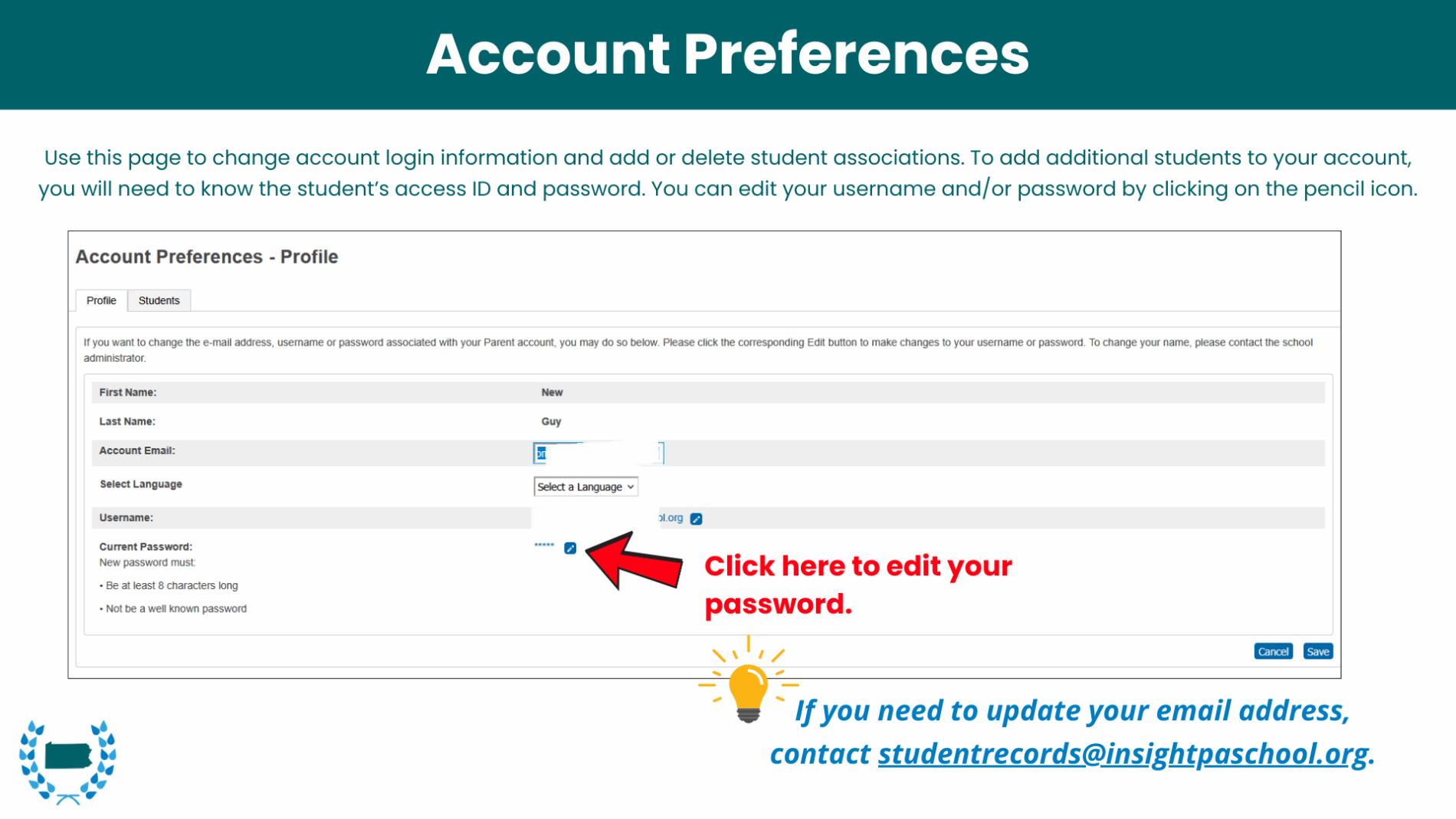
Use this Account Preferences page in the Parent Portal to change your account login information and add or delete student associations. To add additional students to your account, you will need to know the student’s access ID and password. You can edit your username and/or password by clicking on the pencil icon.
*If you need to update your email address, contact studentrecords@insightpaschool.org.
- To update your email address or phone number, add a student, or add a legal guardian, please email studentrecords@insightpaschool.org.
- To change your physical address, please email changeofaddress@insightpaschoo.org.
- If you are experiencing issues with your account, please email itsupport@insightpaschool.org and provide as much detail as possible, including screenshots. Be sure to include your child’s first and last name, as well as their student number.
- For more resources, visit the Family Tech Support Page on our website.