Schoology is a centralized hub for personalized teaching and learning that connects teachers, students, and families in a single platform.
Please note that at Insight PA, only students have Schoology accounts. Parents and guardians can view their students’ attendance and grades in the PowerSchool Parent Portal.
How Can Students Use Schoology?
 View Your Schedules – Students can view their schedules in multiple ways.
Attend Class – Access links for all of your live class sessions.
Complete Coursework – All assignments are given through Schoology.
How Can Students Access Schoology?
You can access Schoology two different ways:
- Click the “S” button at the top of our website or visit insightpa.schoology.com.
- Download the app on your Android or iOS device using the links below.*
Due to the limitations of Class for Zoom on mobile devices, joining your live classes from the Schoology mobile app is not recommended.

Schoology User Guides
Once you are logged in, you will see this screen. Use the numbers and the list below to learn more about the features included on this page.
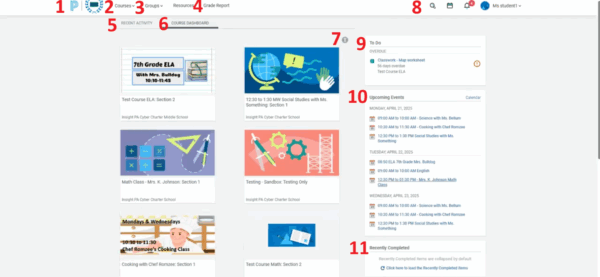
- Insight PA Logo – click here to return to the Schoology home page.
- Courses – opens up a panel with your classes. (Only the first 12 classes will appear on this panel.)
- Groups – shows any groups that you are placed in, like The Bulldog Boutique or an afters-chool club.
- Grade Report – click here to view your grades.
- Recent Activity – view Schoology announcements from your teachers and staff. (Remember to log into StudentSquare daily for the most up-to-date information!)
- Course Dashboard – click here to view all of your courses.
- Accessibility Icon – hover over this icon to learn how to sort your courses using your keyboard.
- See below for more information about this menu!*
- To Do List – displays your upcoming and/or overdue assignments.
- Upcoming Events – displays your schedule.
- Recently Completed – displays the assignments and quizzes that you have recently submitted.
*The menu in the upper right corner of the screen includes the following:
- Magnifying Glass – click here to search for a class or assignment.
- Calendar Icon – click here to view your calendar.
- Bell Icon – click here to read your Schoology notifications
Due to the limitations of Class for Zoom on mobile devices, joining your live classes from the Schoology mobile app is not recommended.
To use the Schoology app:
- Open the app and select “Sign in through my school”.
- Tap the box that says “Enter your School or domain” and enter “Insight PA Cyber Charter School”.
- Choose the first option that lists Herndon, VA with a green dot.
- Tap the link that says “GO TO SSO”. On the Google Sign-in screen, choose your Insight PA account or press “Use another account” and enter your Insight PA School credentials.