
ParentSquare is a communication platform that helps families stay involved in their student’s success by making it easier for them to connect with the school. StudentSquare is the same platform – just for students!
How Can You Use ParentSquare?

Posts & Groups – View important information from your student’s teachers, as well as school-wide messages.
Direct Messages – Send messages directly to Insight PA employees, just like email!
Calendar & Events – Learn more about upcoming events and RSVP to attend events in your area.
Report Cards & Other Documents – View secure documents sent directly to you through ParentSquare.
How Can You Access ParentSquare?
You can access ParentSquare two different ways:
- Click on the ParentSquare icon at the top of our website or visit parentsquare.com/signin.
- Download the app on your Android or iOS device using the links below.


Parent/Guardian User Guides
English –
Spanish –
On the ParentSquare Website:
- Visit and login to your account.
- Click on your name in the top right corner and choose Manage Account.
- The student ID number will appear under their name, to the right of their grade level.
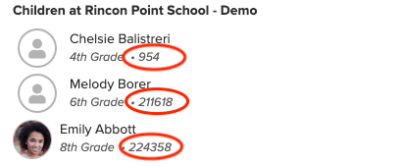
In the ParentSquare App:
- Tap the menu icon (triple bars) in the top left corner.
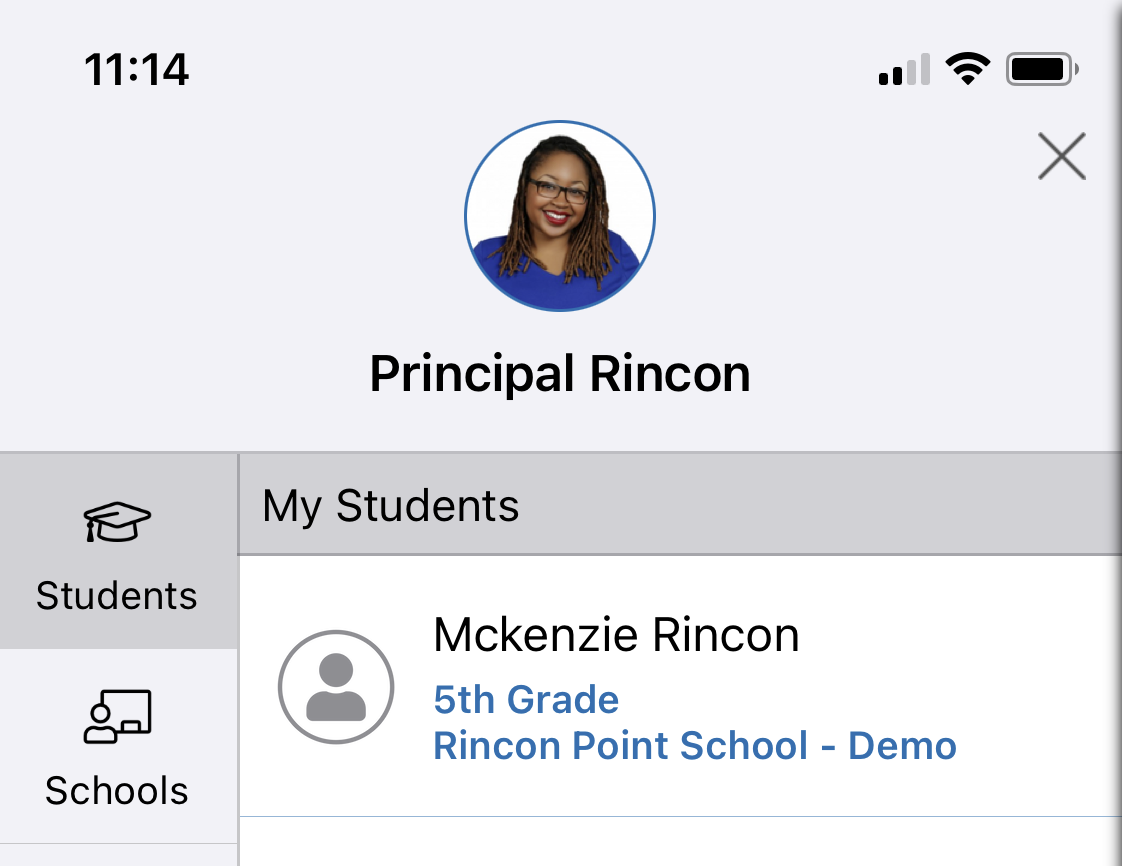
- Tap Students in the left sidebar, then tap the student’s name.
- Tap Dashboard, then Overview.
- Your student’s ID number will appear under their name.


To set up language translation in ParentSquare, go to your account settings, select “My Account,” and click “Change This” next to Language Settings. Choose your preferred language, save your changes, and messages will be automatically translated. View more detailed directions here.